It’s jarring to be interrupted by a Chrome alert in the middle of your work routine, especially when it says “Google Chrome is capturing your screen.” No one wants to have their screen watched remotely without knowing who could be looking in.
Hostile screen captures could potentially expose passwords and undermine email security. However, these messages don’t mean your computer’s been hacked. The cause might simply be a video meeting or another tab using screen share that was left open.
A Chrome screen capture alert does mean that Chrome, or something running inside it, has permission to record what’s on your display. That’s enough to justify a quick check for privacy settings, unnecessary browser extensions, and malware.
What Causes Chrome Screen Capture Notifications? 
A lot of the time, the reason for this Chrome capture is video conferencing. Instead of having a separate app, you use it within Chrome. And that’s why “Google Chrome is capturing your screen” pops out of nowhere. Aside from that, there are several causes that should be ruled out. Remote desktop apps, or even various browser extensions, could be the culprit here.
Check Your Browser’s Tabs for an Active Chrome Screen Capture
Before going any further, you want to see if the message stems from having any active videoconferencing apps or any of the stuff listed above active in the browser. If that’s the case, just close the tabs. Of course, if the issue persists, you want to see if there are other ways to handle this.
Manage Permissions to Stop Chrome Screen Capture
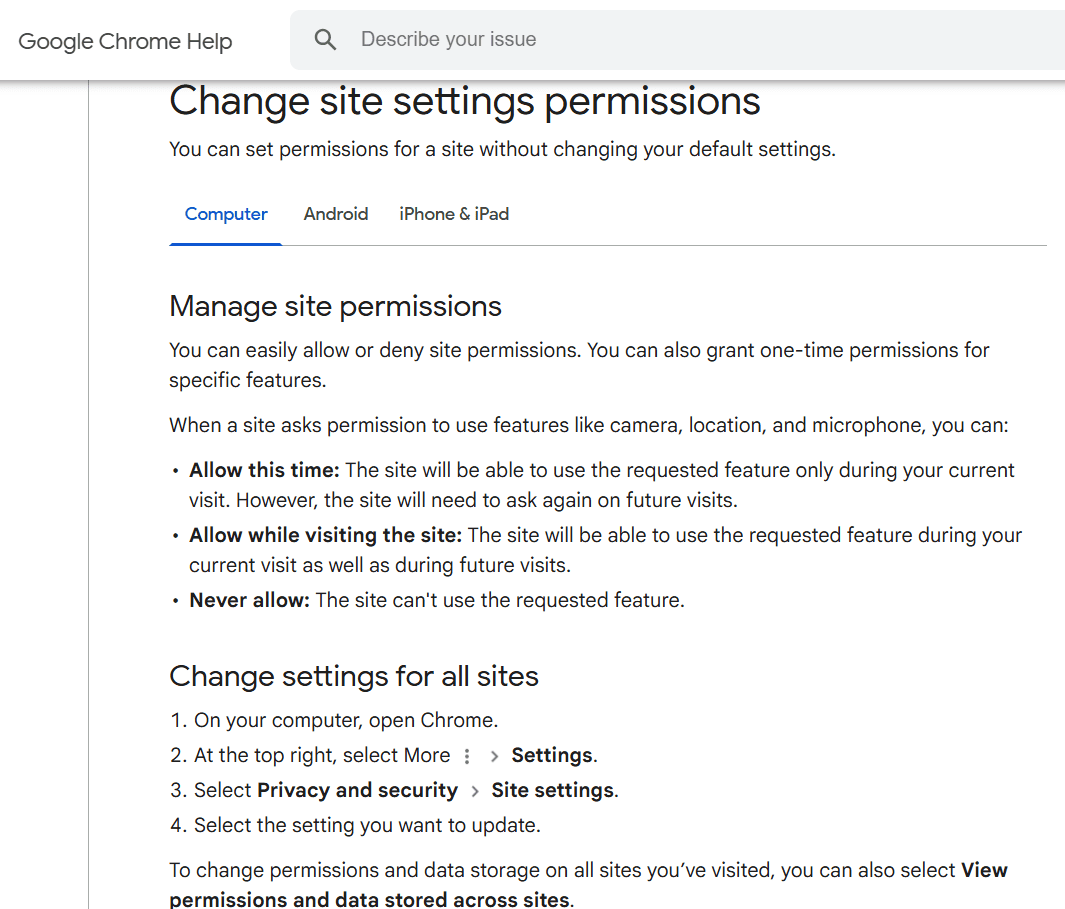
Chrome won’t always offer access to those apps unless you offer specific permissions. Go to the Chrome settings, choose Privacy and Security, Site Settings, and then Camera under Permissions. Remove any of the permissions that you are not okay with, and this will help solve the problem in no time. It’s an effective and streamlined solution that can save a lot of effort and time.
Disable Any Browser Extensions That Cause Chrome Screen Capture Issues
Sometimes, the “Google Chrome is capturing your screen” message stems from extensions. These might be using your browser unbeknownst to you. If that’s the case, you can just stop the extensions on your own. Yes, it might not seem easy to do, but it totally helps, and it’s one of those things that might end up being a necessity.
Revoke Recording Access for Chrome Screen Capture
Another option is to disable screen recording in Chrome. Go to the Privacy and Security tab, then choose Screen Recording. See if Chrome has permission to use this type of content. If you want, just remove it. It’s not a simple thing, but it might end up bringing in some great results, so use that as an advantage, if possible. In the end, that can lead to a great outcome.
macOS Updates to Fix Chrome Screen Capture Vulnerabilities
It could also be related to any Mac OS errors or vulnerabilities. Some hackers might have used a browser or Mac vulnerability to access that content. Knowing how to tackle and manage that easily can be extremely important. And it’s not simple, for sure. Yet once you update your Mac OS, you can eliminate many concerns while ensuring the process is managed at the right level.
Is Malware Behind Your Chrome Screen Capture Alert?
Using a Mac cleanup tool can be a great idea if you want to check for malware. Another great thing you can do is install an antivirus program. The thing is, email malware that runs in the browser can be very problematic. Identifying this type of malware can be difficult, but it’s manageable with effective email security.
At the same time, you need to remove malware from your device as quickly as possible. Otherwise, you can end up with a system-wide infection. However, antimalware will be very effective once you start using the right endpoint security solution.
Chrome Screen Capture FAQ
Below are some questions and answers to help with troubleshooting an unexpected screen capture alert.
What causes the "Chrome screen capture" alert during a meeting?
It usually fires when a tab or extension starts sharing your screen or a window. Video tools, screen recorders, or even browser features can trigger it. Sometimes it’s expected. Sometimes it’s not obvious which tab did it.
Does a Chrome screen capture notice mean malware?
Not by default. Most of the time it’s legit activity from a meeting app or extension, but you still verify because malware can abuse the same permissions. Context matters here.
How do I revoke permissions for Chrome screen capture?
Go into Chrome settings and check site permissions. Remove screen capture access for anything you don’t trust. Extensions need a separate check, since they can hold broader access than a single site.
Can extensions trigger unwanted Chrome screen capture?
Yes, and they do. Some extensions request capture rights and keep them quietly. If something feels off, disable extensions one by one and watch what stops.
Will macOS updates resolve Chrome screen capture bugs?
Sometimes. OS updates fix permission handling and bugs in how apps interact with screen recording, but they won’t clean up bad extensions or misused settings. You still need to check those manually.
How to identify tabs causing Chrome screen capture?
Look for the screen share indicator in Chrome, usually tied to a tab or window. The browser will mark what’s being shared, but it’s not always obvious if multiple tabs are active. Closing tabs one at a time can isolate it.
Is ignoring Chrome screen capture risky on Mac?
It can be. If you didn’t initiate it, something else did, and ignoring that leaves you exposed. At a minimum, confirm the source before you move on.
Can I block Chrome screen capture system-wide?
You can restrict it through macOS privacy settings. Remove Chrome’s screen recording permission entirely if you don’t need it. That cuts off all capture attempts at the OS level.
Why does Chrome screen capture alert randomly?
Usually, it’s not random. Background tabs, extensions, or meeting tools re-trigger capture sessions without clear prompts. It feels random because Chrome doesn’t always surface the source cleanly.
Should I install antivirus after a Chrome screen capture warning?
Not automatically. If everything checks out, no need to overcorrect. But if you can’t trace the source or see other odd behavior, running a scan is a reasonable next step.
Best Practices to Prevent Chrome Screen Capture Alerts
Keeping Chrome stable on macOS isn’t just about performance tuning; it ties directly into how you manage permissions. Most of the time, this alert shows up because Chrome already has permission and something is actively using it, not because anything new just broke in. You’ll see it with Meet, Zoom in-browser, or random tabs that asked for access earlier and never cleaned up after themselves.
Frequent alerts train people to ignore things that might actually matter later, and that’s where small gaps turn into real cybersecurity risks over time. You don’t fix it by clicking faster. You fix it by checking what tabs are active, killing anything you’re not using, and reviewing which sites still have screen recording permissions.
The best practices for preventing unintentional Chrome screen capture begin upstream with email security, since a lot of screen share sessions kick off from calendar links or embedded meeting invites that open directly into Chrome. If users just keep approving prompts without thinking, those permissions stick around longer than they should, and the alerts keep coming back.


 PREVIOUS
 NEXT
NEXT 
Other FAQs
- Exploring Malicious Code Risks: Strategies for Email Safety
- Proven Strategies for Effective Malware Removal on Windows Computers
- Why Outsourcing Email Security is Critical for Modern Businesses
- Comprehensive Guide to Safeguarding Against Domain Spoofing Threats
- Effective Strategies to Combat Insider Threats in the Workplace
- Strategies for Email Authentication to Counter CEO Impersonation
- Critical Factors for Selecting Email Security Solutions in Business
- Harnessing Managed Security Services for Enhanced Cybersecurity Vigilance
- Effective Penetration Testing Techniques for Cybersecurity Enhancement
- Managed SIEM Solutions: Boosting Email Security for Small Businesses

Join Our Community
of Readers!