Outlook inbox problems rarely show up all at once. A folder stops syncing correctly. Search drags. Messages open a few seconds too late. Then, Outlook suddenly freezes during launch or refuses to open entirely. At that point, the PST file your mailbox runs on is probably corrupted.
File corruption builds quietly. Sometimes it points back to missed threats and bad attachments. Malware can play a role too, especially when weak email filtering lets infected attachments land inside the inbox and sit there long enough to damage data files over time. By the time users notice, the inbox has already become unreliable.
This guide walks through how to repair a corrupted Outlook PST file using the Inbox Repair Tool, what to do when ScanPST can’t recover the mailbox cleanly, and a few practical ways to reduce the odds of the same failure showing up again later.
What is a PST file?
PST stands for personal storage table, the standard data file in Microsoft apps. Outlook depends on this single file type to hold everything: mail, attachments, calendar items, and contacts. When the PST file breaks, Outlook starts to fall apart.
What Causes Outlook PST File Corruption?
If a PST file gets too large or the program closes while syncing, it can be corrupted. Power loss and system crashes that shut off the computer while Outlook is open can do it too. Even a small glitch during an update can damage the file enough to stop Outlook from reading it. 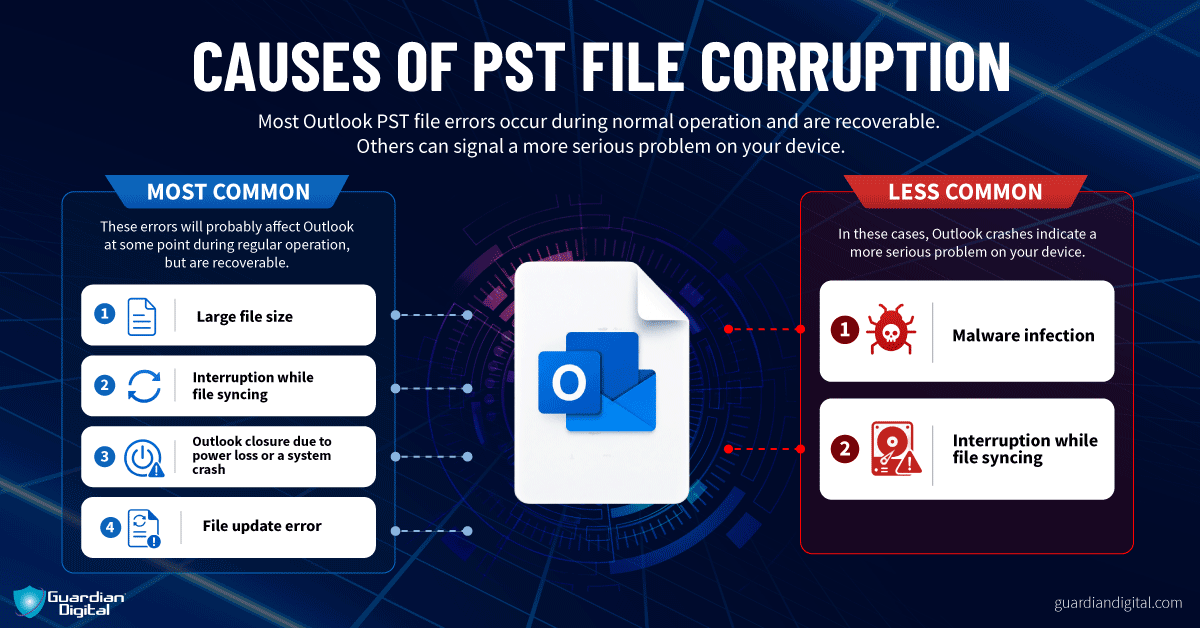
In most cases, corruption builds up slowly. Outlook keeps running, but small errors pile up until the program finally gives out. That’s when you start seeing crashes or missing folders and realize something’s gone wrong underneath.
Sometimes the cause is simply file size or a failure to close Outlook correctly, but other times it’s something deeper:
- A small issue on your hard drive can corrupt part of the file.
- Malicious email attachments or hidden malware files can damage stored data.
- An update that stops halfway through can leave Outlook unable to read the file.
Email security best practices and regular system maintenance can help avoid this situation, but once corruption starts, it tends to build up. Outlook slows down. Folders stop loading. Eventually, the inbox just won’t open at all.
Always Have a Backup
Inbox failure isn't always preventable, but users can plan ahead. Regardless of what issues are slowing down Outlook, it's a good practice to back up .pst files.
How to Repair Outlook PST Files in Six Steps
1. Close Outlook completely. Don’t leave it running in the tray.
2. Now open your file folders and look for a program called ScanPST.exe. It’s already on your computer. Microsoft hides it inside the Outlook install folder.
3. Double-click ScanPST.exe to open it. Then, in the small window that appears.
4. Click Browse and find your Outlook file. It ends in .pst or .ost. That’s the file with all your emails in it.
5. Click Start. It’s going to scan the file. You’ll see a progress bar. Just let it finish.
6. When it’s done, click Repair. That’s it. It’ll try to fix what it can.
If it works, Outlook opens again, and everything’s back. If it doesn’t, no worries. You can run it one more time or use a backup.
How to Repair a Corrupted Outlook Inbox
When Outlook won’t open or keeps crashing, the inbox file itself is usually damaged, not the app. Microsoft includes a built-in repair utility for this called ScanPST.exe (Inbox Repair Tool).
Step One
Steps Two and Three
Steps Four and Five
Step Six
Note: ScanPST makes a backup before it touches the file. You can leave it, or point it somewhere else if you don’t want random PST copies piling up on a user’s machine.
One run usually isn’t enough. You fix it, run it again, it finds more, which tells you the file’s been badly corrupted for a while and just finally broke. Some mail won’t come back. If it’s been permanently deleted or got too damaged, it’s gone.
When it’s done, open Outlook with the same profile tied to that PST. That’s where you see what actually survived, and that’s usually when the real complaints start.
Where to find the Outlook Inbox Repair Tool (ScanPST.exe)
Every version of Outlook has ScanPST. The folder changes depending on how Outlook was installed.
The tool handles small-scale issues like header errors or sync failures. It won’t reverse major corruption or damage from email malware, but it’s the right first test. If repairs don’t hold, the problem isn’t the tool; it’s what got into the file in the first place.
When the Outlook Inbox Repair Tool Doesn’t Work
Even after running Microsoft’s Inbox Repair Tool (ScanPST.exe), Outlook sometimes still refuses to open or shows missing messages. That usually means the repair didn’t fully fix the underlying issue.
Signs the repair failed:
- The PST or OST file remains inaccessible or won’t mount.
- Folders or messages disappear after reopening Outlook.
- Outlook opens briefly and then crashes or freezes again.
Why repairs fail:
- File size limits: PST files over 10–20 GB are prone to partial repair or index corruption.
Deep corruption: structural damage beyond what ScanPST can rebuild. - Malicious or infected attachments: payloads from suspicious emails that damage file integrity.
Next steps:
- Try restoring from a recent backup or Windows restore point before further changes occur.
- Use Microsoft’s repair via Control Panel > Programs and Features to reinstall Outlook components.
- For large or critical mail stores, consider professional recovery utilities that can reconstruct damaged indexes safely.
Corruption isn’t always random. Malicious emails can mimic file damage or trigger repeated crashes to disguise an infection. An email virus payload hidden in a seemingly broken PST can compromise systems when users attempt manual repair. Then, a simple recovery task turns into a security incident.
How to Repair Outlook PST File FAQ
If repairs don’t go as planned, review these common questions about how to repair Outlook PST files.
What are the signs of a corrupted PST file?
Slow performance, missing emails, sync errors, or Outlook crashing on open. These signs of a corrupted PST can show up fast. Sometimes folders just disappear or refuse to expand.
Does SCANPST fix all Outlook corruption?
SCANPST doesn’t fix everything. It handles light to moderate corruption, not serious damage or missing data blocks. If the file is heavily broken, it’ll stall or “repair” it into something still unusable.
What if the repair Outlook PST file fails?
If the repair fails, you’re looking at restoring from backup or moving to a dedicated repair tool. Sometimes exporting partial data is the only salvage path. Depends how bad the file is and how much integrity is left.
Can malware corrupt my Outlook inbox?
Yes, malware can corrupt an Outlook inbox. It’s not always direct, but tampering with files, injecting junk data, or crashing Outlook repeatedly will do it. Ransomware hitting PSTs isn’t rare either.
How do I know if I need to repair a corrupted Outlook inbox?
You'll know when Outlook hangs on launch, folders won’t open, or emails just disappear with no clear reason. These problems will probably appear after a crash or a hard shutdown.
Why is Outlook not opening even after using the inbox repair tool?
When Outlook stays broken after repair, the issue often runs deeper. The data file may be too large, or the damage too severe, for ScanPST to rebuild. Add-ins or hidden malware can make it worse. In those cases, restore from backup or use a clean rebuild instead.
Can the Outlook inbox repair tool delete my emails?
Not directly, but it can lose track of them. During repair, Outlook removes or relocates corrupted entries to a “Lost and Found” folder. If messages are missing afterward, check that folder or restore an older PST file to bring them back.
How does email security prevent data file corruption?
Malicious emails are one of the fastest ways to break Outlook. Corrupt attachments or scripts can damage mailbox files and mimic system errors. Advanced email protection, like Guardian Digital’s layered defense, stops those payloads early and keeps inboxes stable, secure, and free from silent corruption.
Prevent Future PST File Corruption With Backups
Knowing how to repair Outlook PST files will get a broken inbox moving again, but it doesn’t always solve the real problem. ScanPST and similar tools can patch a PST file enough to open, but not rewind whatever caused it to fail in the first place. That part usually gets ignored until it happens again.
Most of the time, it’s the same patterns. Mailboxes grow too large, systems get shut down hard, or something malicious slips through and sits there quietly until the file structure starts to fall apart. This is where basic discipline matters more than tools.
Backups make the difference. Regular copies, smaller mailbox sizes, and keeping an eye on early warning signs before things fully break, that’s what keeps Outlook usable instead of turning inbox repair into a repeat task every few weeks.
Email security plays the biggest role. Many inbox failures start with a malicious email disguised as something routine. When threats slip through, damage follows. Guardian Digital’s protection for Microsoft 365 stops those messages before they reach users, keeping inboxes stable and business operations running smoothly.


 PREVIOUS
 NEXT
NEXT 
In this article
Stay Informed with Our Latest Insights
- Why Email Thread Hijacking Makes Compromise Harder to Detect
- Calendar Phishing Attacks: How Malicious Invites Bypass Email Defenses and Change Enterprise Risk
- SaaS Attacks and Email Security: How SaaS Platforms Became the Delivery Layer
- Data Leaks from AI-Generated Code Are Fueling Email Breaches
- How to Protect Your Business Against Spear Phishing: A Defense Playbook

Join Our Community
of Readers!
Must Read Blog Posts
- Phishing Scams in 2026: The Rise of AI and Deepfake Risks
- Understanding Email Viruses: Detection, Prevention, and Security Strategies
- Effective Phishing Protection: Strategies and Training for Businesses
- Essential Ransomware Strategies for Effective Business Protection
- Maximizing Email Security: Advanced Strategies for Threat Defense
- Microsoft 365 Phishing: Why Attacks Still Reach Inboxes and How to Stop Them